
This guide follows Example Studio, a made-up events company, as it runs a project called Spring Product Launch. Every person, company and project in the screenshots is invented.
Left-hand rail
On a computer, the rail down the left takes you to Dashboard, Projects, My Tasks, People and Archive. More at the bottom holds My Companies, Import CSV, Project Templates, admin tools and this guide.
On a phone
Tap the menu icon in the top-left corner. It holds the same destinations and tools as the rail.
Search
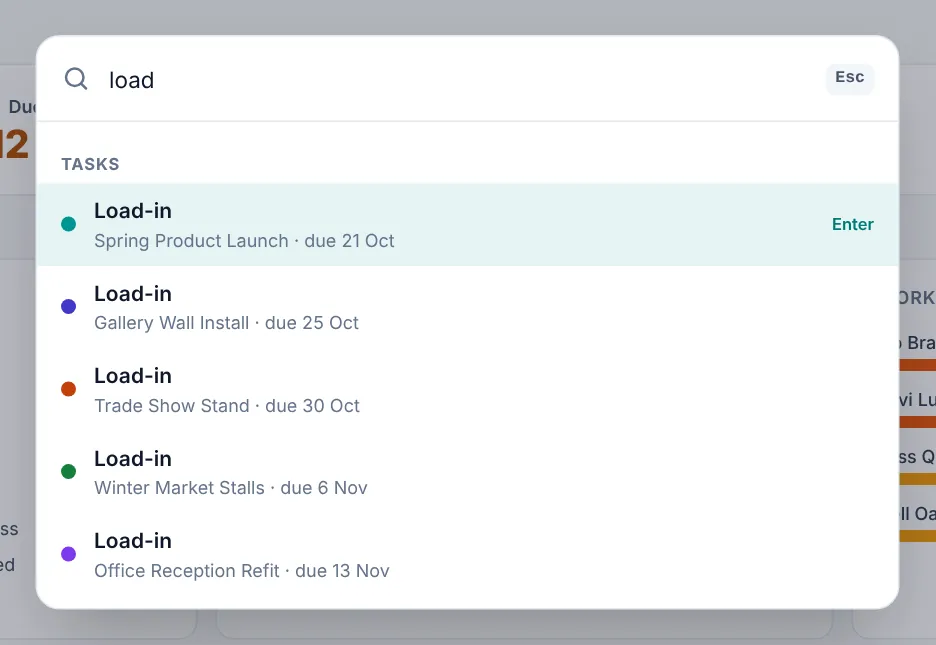
Press Ctrl K (Cmd K on a Mac) or click Search in the top bar. Type part of a project, task or milestone name, or someone's name to find their tasks. Use the arrow keys and press Enter to jump straight to it.
Top bar
+ New Project, your name, the preferences and the sign out button.
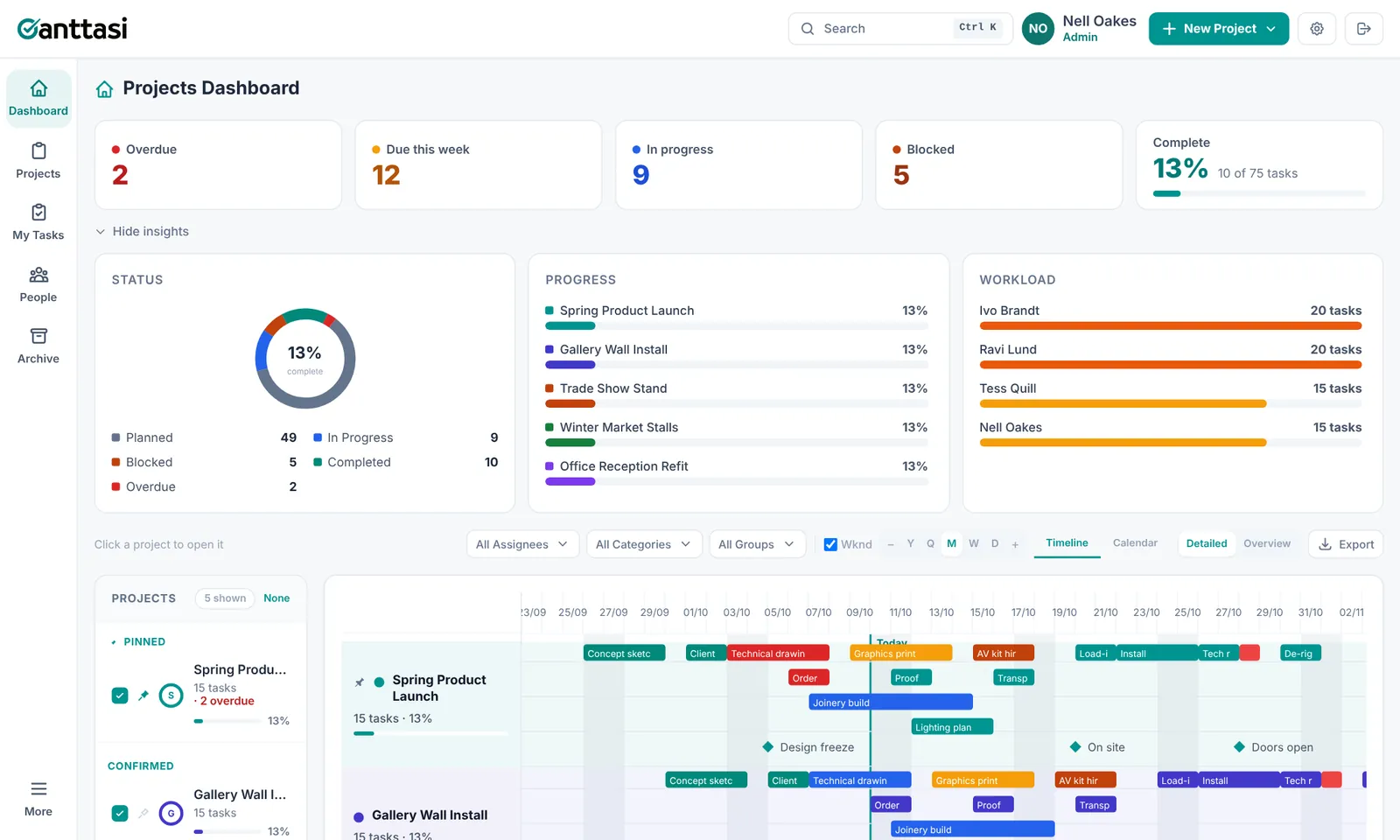
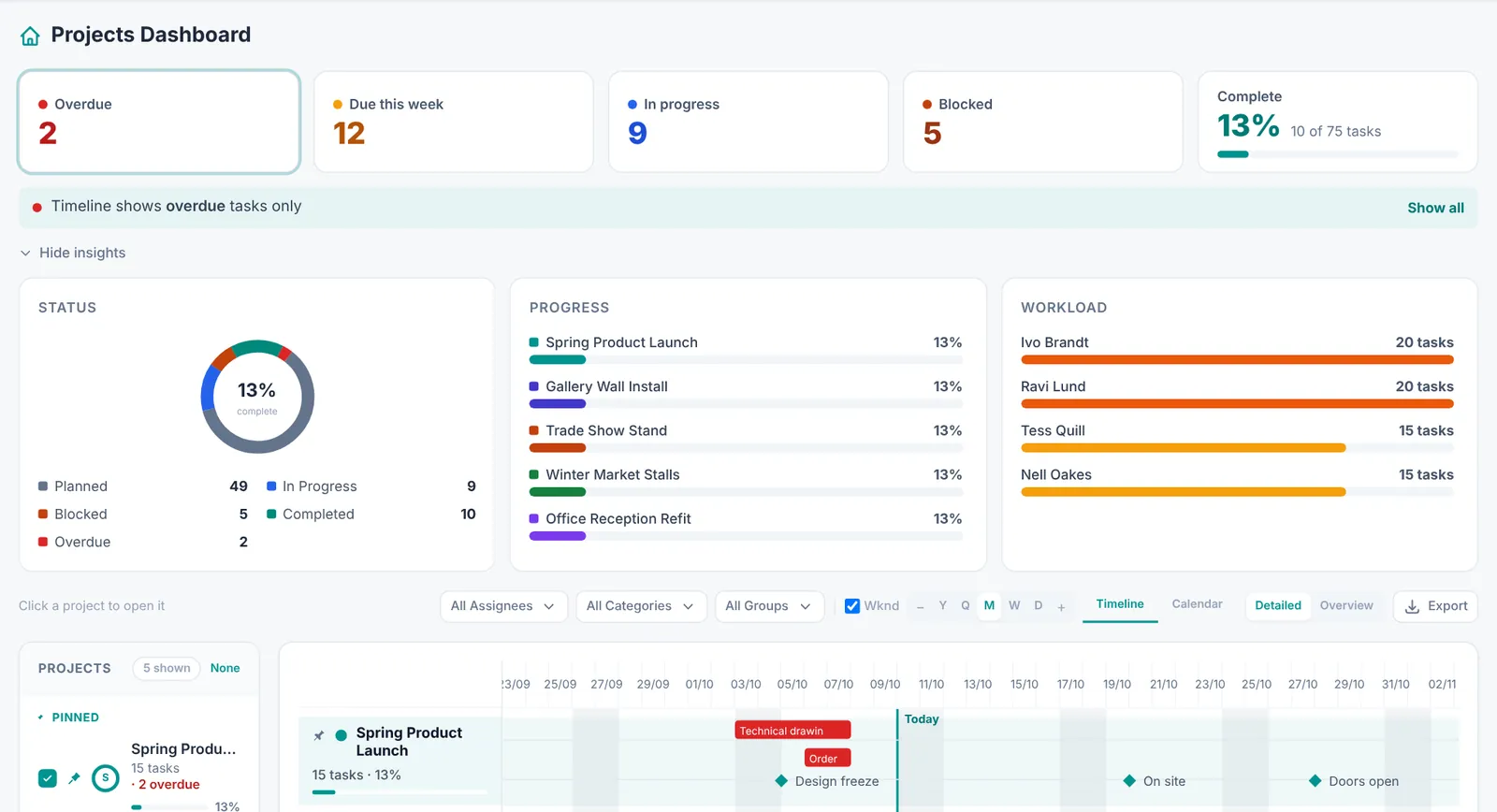
Colours mean the same thing everywhere. Grey is planned, blue is in progress, orange is blocked, teal is completed and red is overdue. Red is only ever used for overdue work, so anything red needs attention.
Open My Companies
Click More at the bottom of the left-hand rail (or the menu on a phone) and choose Create Company. Once you have a company, this reads My Companies.
Name your company
Type your company or team name and click Create Company. Your projects, team, contractors, categories and groups all live in this workspace.
Set up Groups and Categories
Open the Categories & Groups tab. Groups are the departments or phases your work falls into (Design, Build, AV & Tech, Install). Categories sit inside groups (Joinery, Print, Lighting). Every project in the company shares them, so timelines and filters stay consistent.
You're the company admin
As the creator you can invite people, set roles, manage contractors and change company settings. Make others Admin from the Members tab.
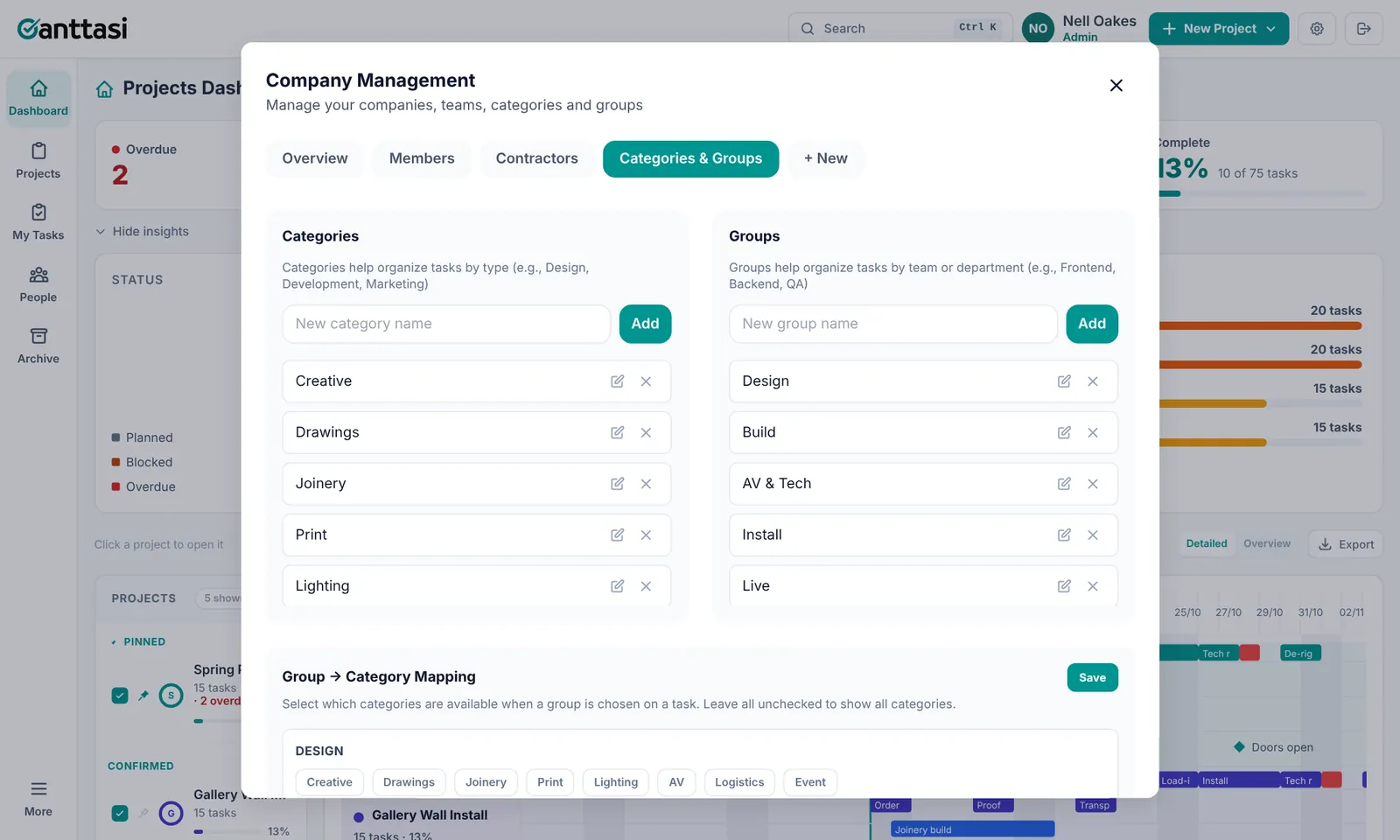
Example Studio uses five groups: Design, Build, AV & Tech, Install and Live. Joinery and Print sit inside Build, so a Build filter shows both.
One company is usually enough. Create a second one only if you run separate businesses from the same account.
Open the Members tab
Go to More → My Companies, pick your company and open Members.
Enter their email and send
Type their email and click Send Invite. New users receive a 6-digit invite code. People who already have a Ganttasi account are added straight away and get an email to say so.
They enter the code at ganttasi.com/invite
The new user visits ganttasi.com/invite, enters their email and code, and creates their account. They join your company automatically.
Choose their company role
Each person is a Member or an Admin of the company. Change it from the dropdown next to their name.
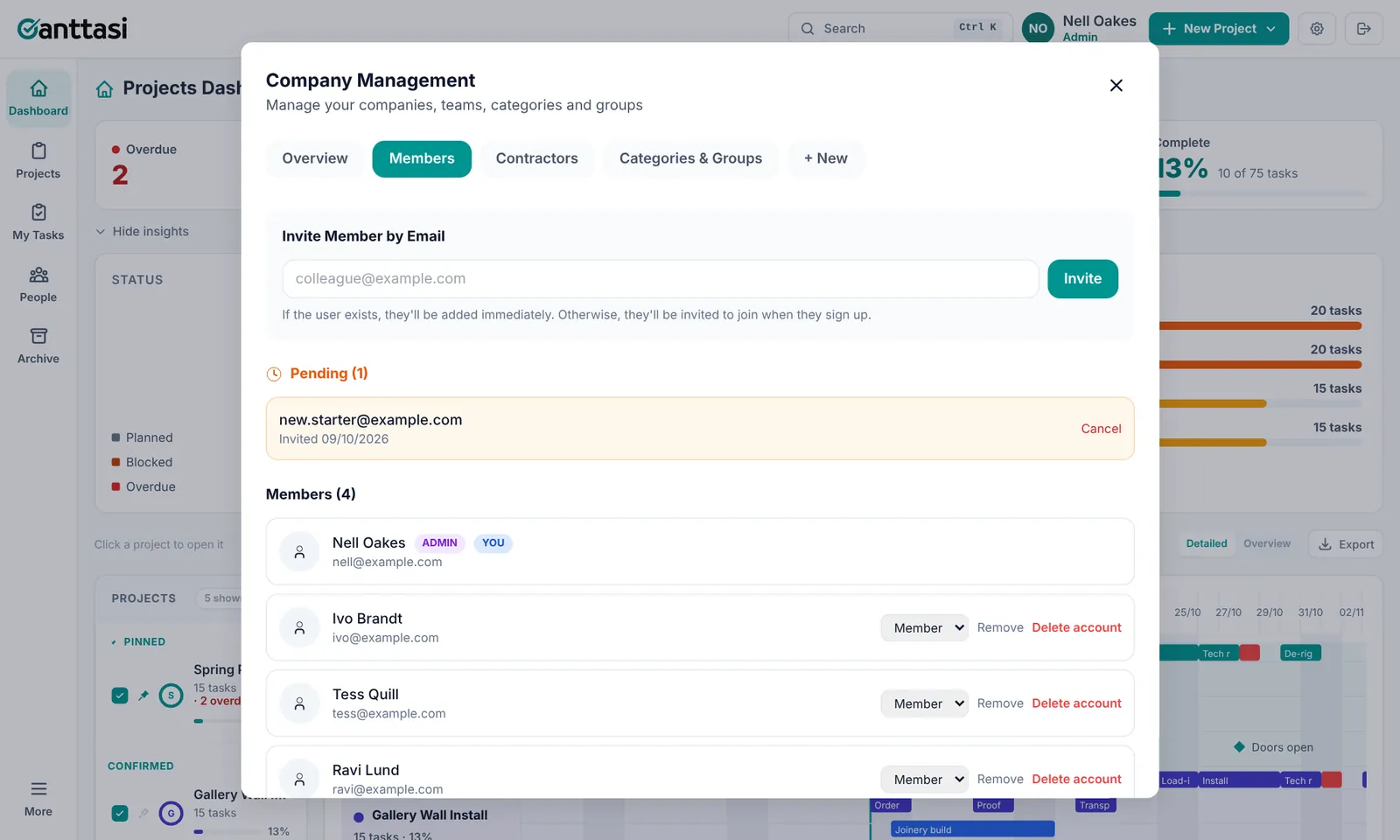
Nell Oakes is the admin. She invites new.starter@example.com, who appears under Pending with a Cancel option. Ivo, Tess and Ravi are already Members.
| Company role | Work on projects | Invite & manage people | Manage contractors | Merge duplicates |
|---|---|---|---|---|
| Admin | ✓ | ✓ | ✓ | ✓ |
| Member | ✓ | ✗ | ✓ | ✗ |
What someone can do inside a single project is set separately, by their project role. See Sharing.
Invite codes expire after 48 hours. If a code runs out, cancel the pending invite in the Members tab and send a new one.
Build your contractor list
In My Companies, open Contractors and click + Add Contractor. A contractor can be a freelancer or a subcontracted company. Add the name, trade or service, email, phone and day rate. Contractors don't need a Ganttasi account.
Switch contractors on for a project
Inside the project, open ⋯ More → Edit Project and tick Enable contractor allocation. A Contractors tab appears on the project.
Allocate contractors and assign them to tasks
On the project's Contractors tab, add people or companies from your contractor list. You can set a different trade or rate for this project. Then pick them in the Contractors field of any task.
See who's booked where
The People page shows every team member and contractor across all projects, and flags anyone booked on two projects at once.
Matt Pell, a carpenter, is on the Example Studio contractor list. Months later a manager adds Matthew Pell for another job. Ganttasi warns that the name looks like a short form of someone already listed.
Ganttasi stops duplicate people. You can't add a contractor using a team member's email, or add someone who's already in your contractor list. If a name looks similar to someone you already have (Matt and Matthew, or Stage Co and Stage Co Ltd), you're asked to check before saving.
Already have duplicates? The Contractors tab lists possible duplicates at the top. Admins can click Merge to move every task and project place onto the person you keep. The duplicate is archived, not deleted. Use the merge icon on any contractor row to merge entries the check didn't spot. Click Not the same person to hide a pair that isn't a duplicate.
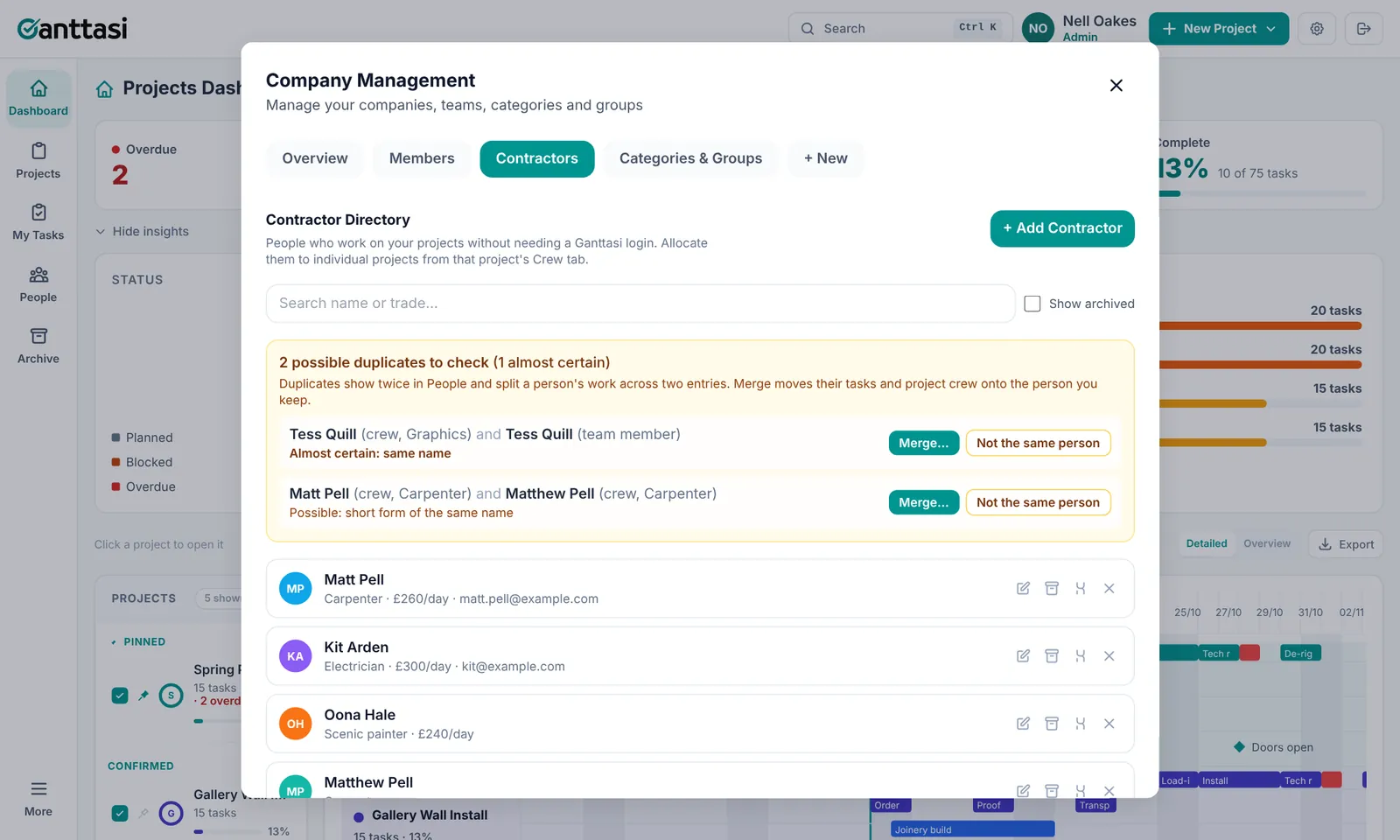
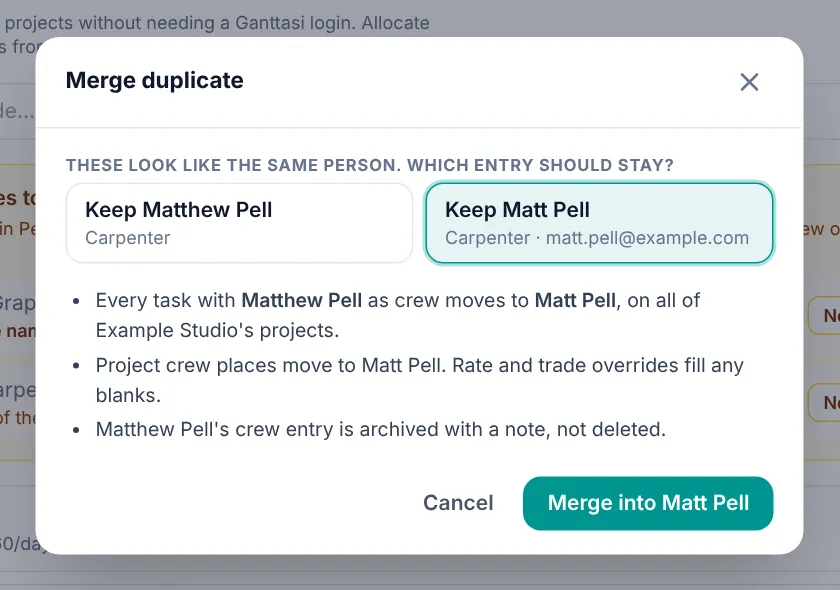
Tess Quill joined the team with a login but was also added as a contractor. Merging her contractor entry into her team account moves her contractor tasks onto her name, so she shows once in People.
Click New Project
Click + New Project ▾ in the top bar and choose Blank Project or From Template.
Fill in the details
Give it a clear name (a job number helps, such as "EX-014 Spring Product Launch"), a colour and an optional cover image. Set the status to Confirmed or Pending so quotes and live jobs stay separate on the dashboard.
Use the More menu
Inside a project, ⋯ More holds Edit Project, Share, Duplicate, Save as Template, Export (CSV or Excel), Archive and Delete Project.
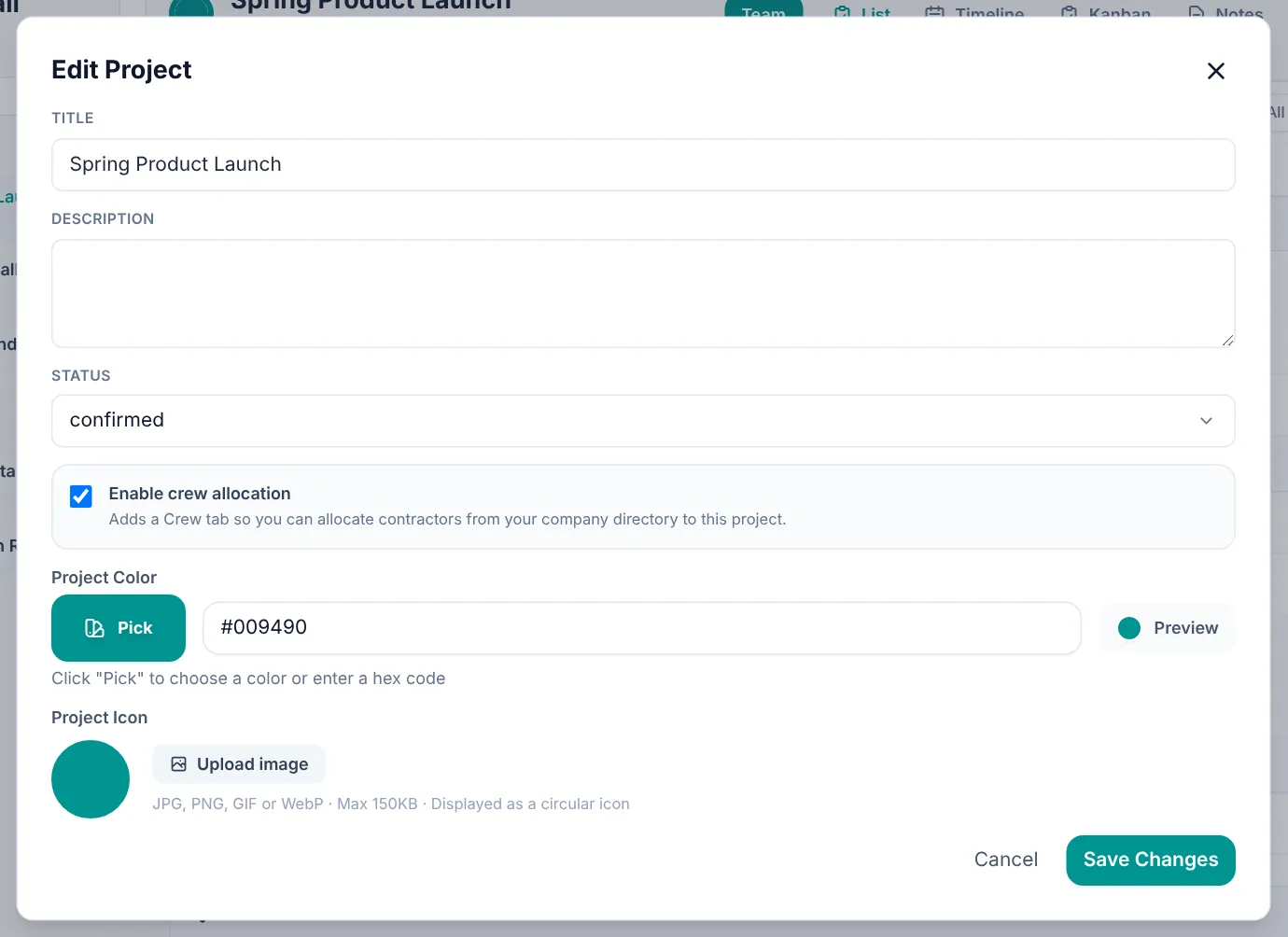
Spring Product Launch is Confirmed and pinned. Winter Market Stalls and Office Reception Refit are quotes, so they are set to Pending and listed under Pending on the dashboard.
Pin the projects you're busiest on. Click the pin next to a project in the dashboard list. Pinned projects sit at the top of the list and the dashboard timeline.
Open a project and click Add ▾ at the top right, then choose Task or Milestone.
Fill in the task panel
The task opens in a panel on the right, so you can still see your plan. Set:
- Name, the action in a few words
- Status: Planned, In Progress, Blocked or Completed. Overdue is added for you when the end date passes.
- Start, End and Days. Change any one and the others follow.
- Assignees from your team, and Contractors if the project uses them
- Group and Category
- Priority: Low, Medium or High
- Dependencies, the tasks that must finish first
- Notes & Checklist, ticked off as work is done
Click Save Changes, or press Enter.
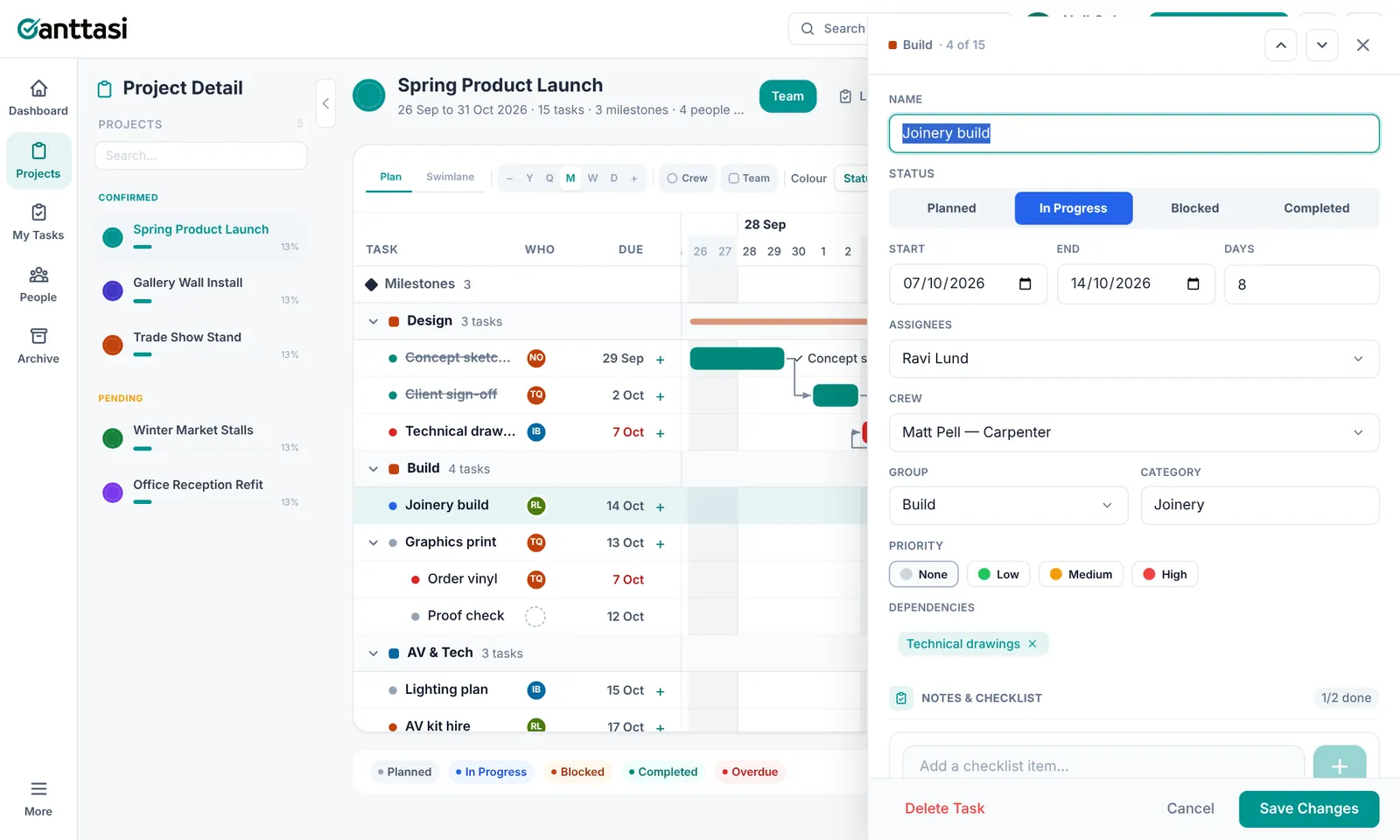
Joinery build runs from 9 to 16 October, is In Progress, and is assigned to Ravi Lund with Matt Pell as contractor. It depends on Technical drawings. If Technical drawings slips two days, Joinery build moves two days with it.
Move between tasks quickly
Use the arrows at the top of the panel to save and open the previous or next task. Clicking a different task in the plan also saves your changes and switches to it. Click the open task again to close the panel without saving.
Break work into subtasks
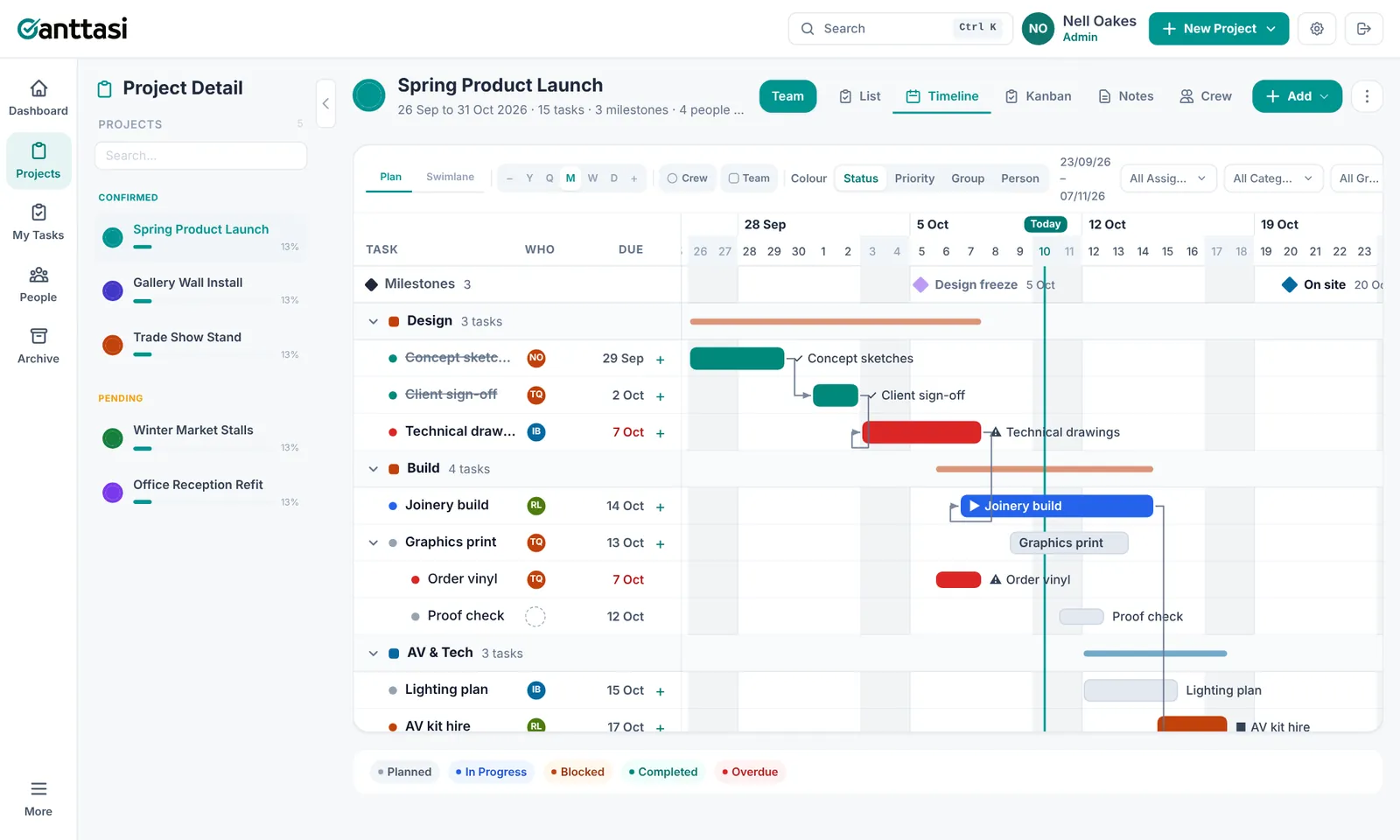
In the Plan timeline, click + next to a task to add a subtask. Drag subtasks to reorder them, or onto another task to move them. When a parent task moves, its subtasks move with it.
Add milestones
Choose Milestone from the Add menu. Milestones mark key dates such as design freeze, on site or doors open. They show as diamonds along the top of the timeline. Ones close together stack onto extra rows so labels never overlap.
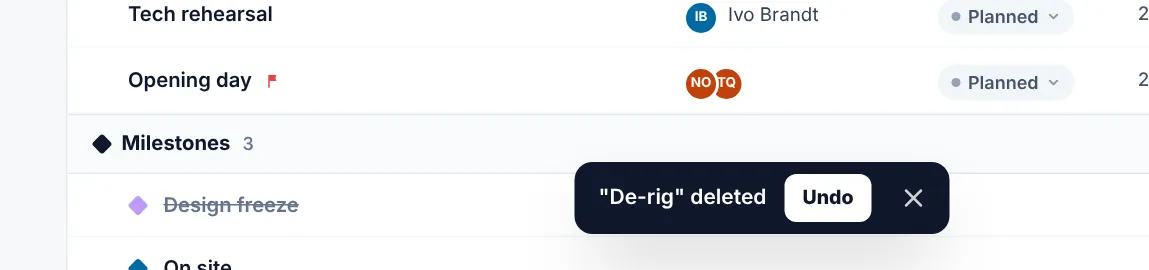
Deleted something by mistake?
Deleting a task or milestone in a project happens straight away. A bar appears at the bottom of the screen with an Undo button for 8 seconds. Undo brings back the task and any subtasks deleted with it.
Dependencies keep the plan honest. When a task moves later, the tasks that depend on it move with it. Set them once and rescheduling takes care of itself.
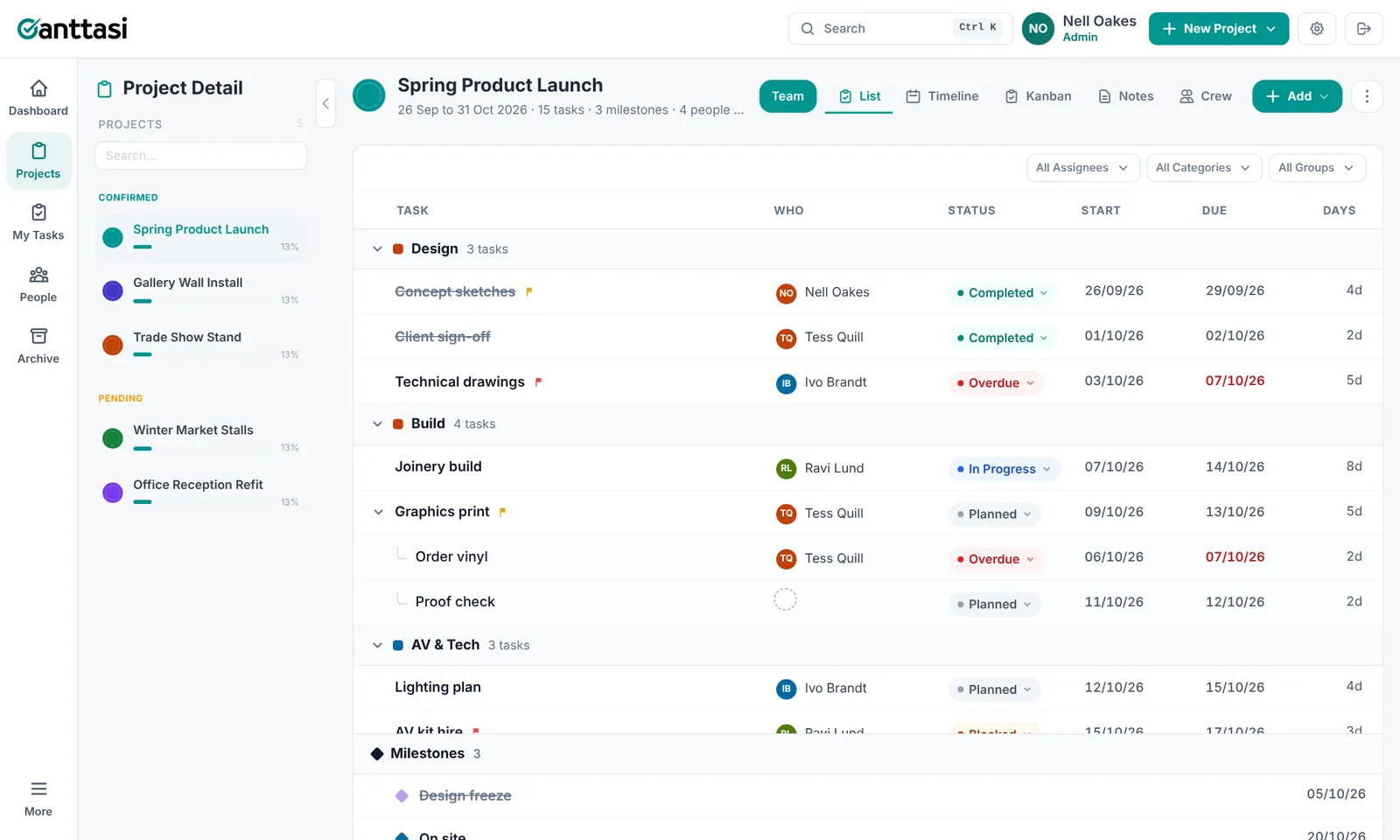
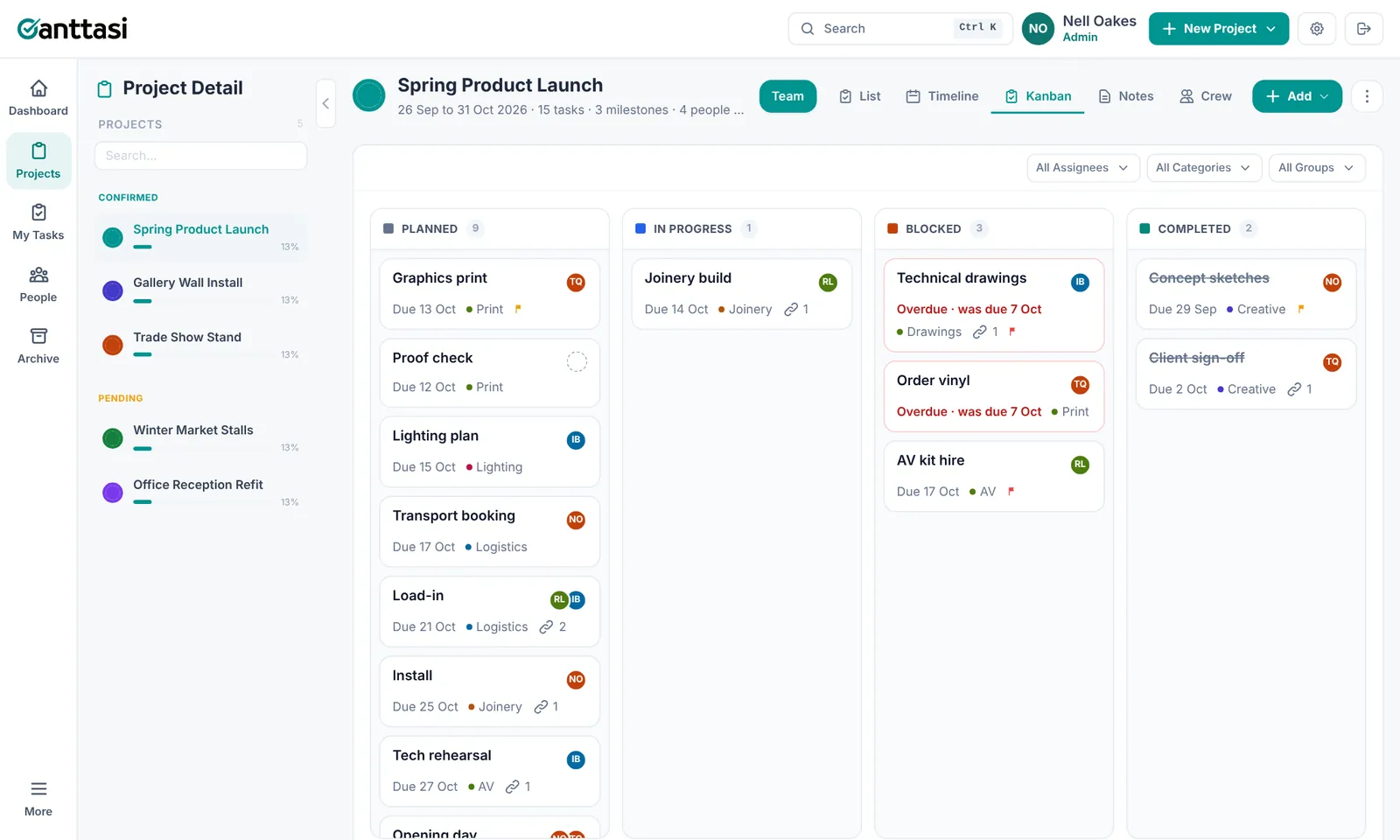
Every project has List Timeline Kanban Notes, plus Contractors when contractors are switched on. All of them work on a phone.
List
Tasks by group, with subtasks indented under their parent. Click a status to change it, or click a start or due date to pick a new one, without opening the task. Filter by assignee, category or group.
Timeline
The Gantt chart. Plan lists every task with who and when on the left. Drag a bar to move it, or drag its ends to change the length. Colour switches bars between status, priority, group and person. Swimlane packs tasks into compact rows.
Kanban
A column for each status: Planned, In Progress, Blocked and Completed. Drag a card to another column to change its status. Double-click a card, or use its edit icon, to open it.
Notes
Shared notes and checklists for the project: meeting notes, decisions and links. Notes added inside a task appear here too.
Dashboard
Your home page. The numbers along the top (Overdue, Due this week, In progress, Blocked) are clickable. Click one to show only those tasks on the timeline below. Click a project name on the timeline to open it.
My Tasks
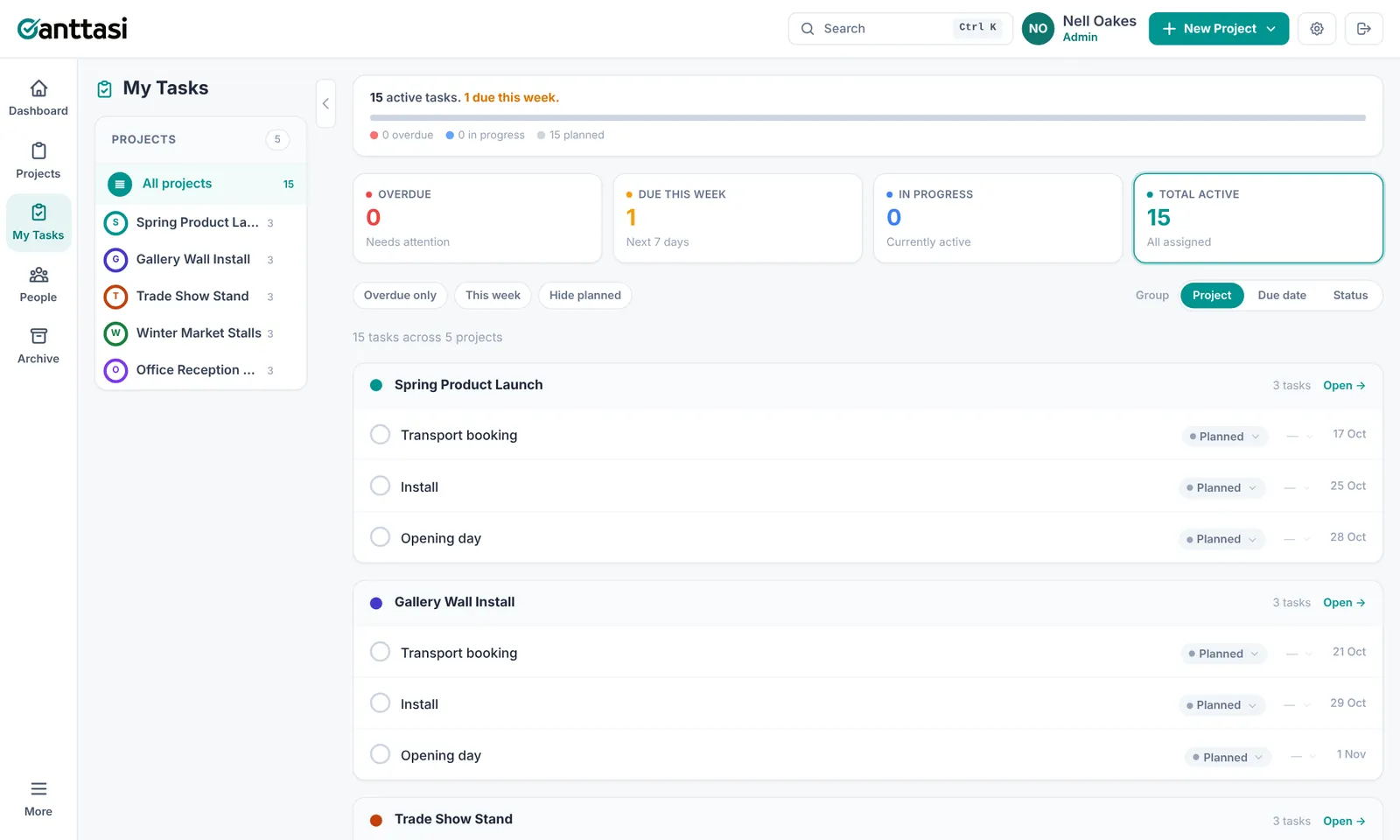
Every task assigned to you across all projects, grouped by project, due date or status. Tick tasks off and change status without leaving the page.
People
Each person's work on one timeline. Contractors booked on two projects at once are shaded red, and team members on several projects are shaded amber, with a count of the days affected. The date line stays at the top as you scroll. The busiest people, by tasks in the dates shown, are listed first. Click A-Z to sort by name.
Archive
Finished projects you've archived from a project's More menu. Open one to look back at it, or restore it to make it active again.
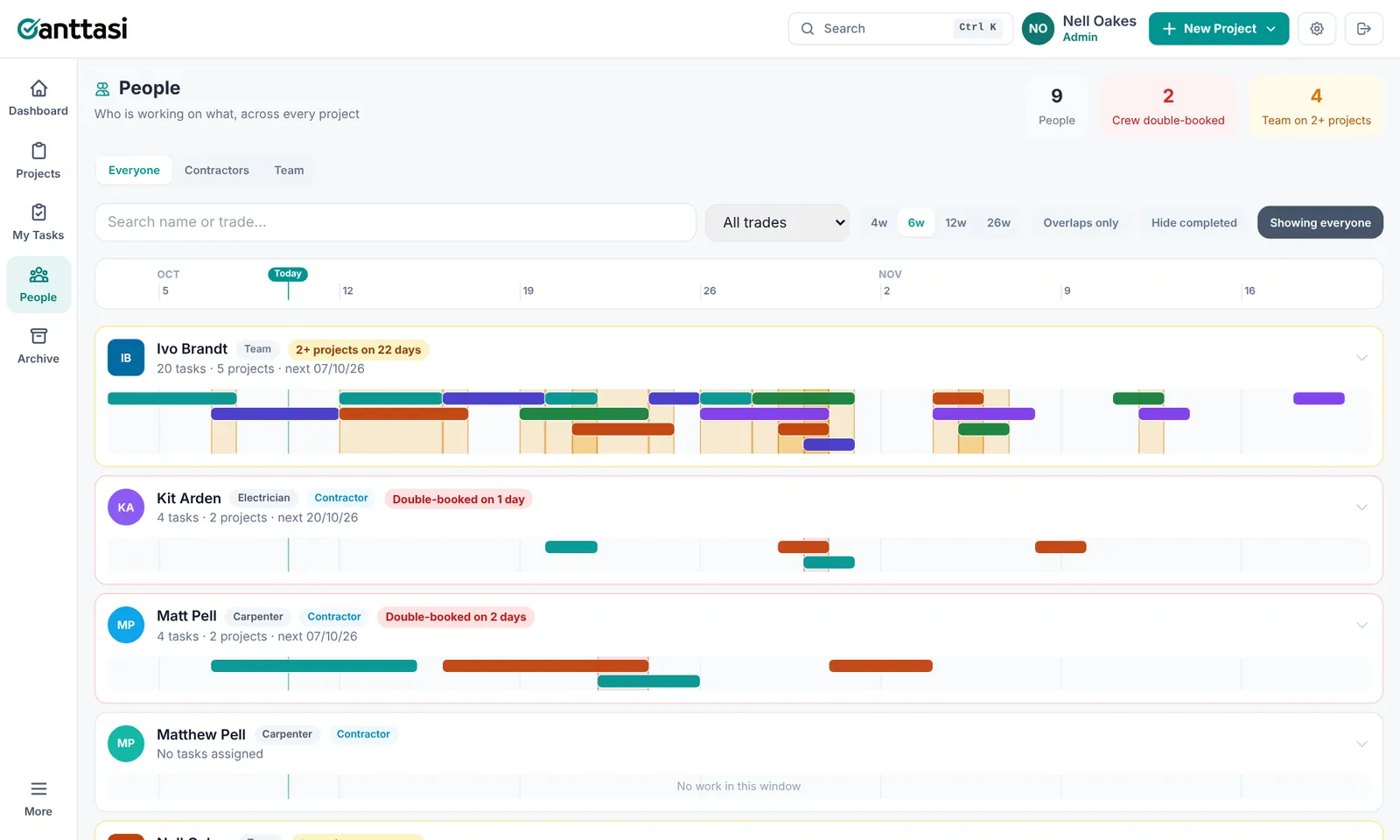
Matt Pell is booked on Spring Product Launch and Trade Show Stand in the same week. People flags the 2 days where both overlap, so the install can move or another carpenter can cover.
Open Share
Inside the project, click ⋯ More → Share. The Team button next to the view tabs shows who already has access.
Add someone from your company
Pick a team member and their project role. They get access straight away. Editors and owners need their own Pro plan. Choose Editor for someone on the free plan and they join as a viewer. Once they upgrade, change them to Editor.
Invite someone new by email
Enter an email address for anyone outside your company, such as a client. They receive a 6-digit code, sign up at ganttasi.com/invite and see this project only. New accounts start on the free plan, so they join as a viewer.
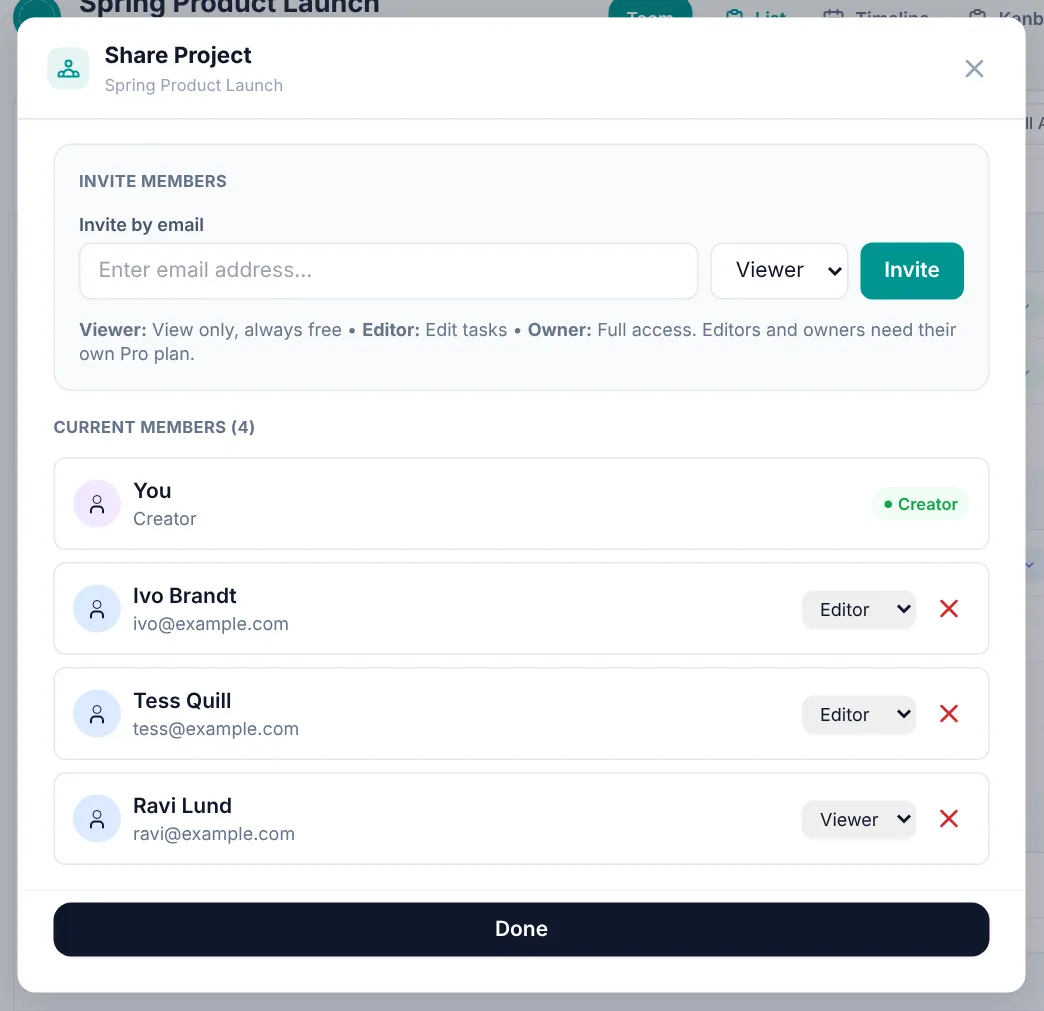
Nell owns Spring Product Launch. Ivo and Tess have Pro, so they are Editors and can move tasks. Ravi is on the free plan, so he is a Viewer. He can see the plan but not change it.
| Project role | See the project | Edit tasks | Share & manage |
|---|---|---|---|
| Owner | ✓ | ✓ | ✓ |
| Editor | ✓ | ✓ | ✗ |
| Viewer | ✓ | ✗ | ✗ |
Viewers are always free. Editors and owners need their own Pro plan.
Sharing a project and joining the company are separate. A client you share one project with doesn't see your other projects, team or contractors.
Click the gear icon in the top bar. These settings only change how Ganttasi works for you.
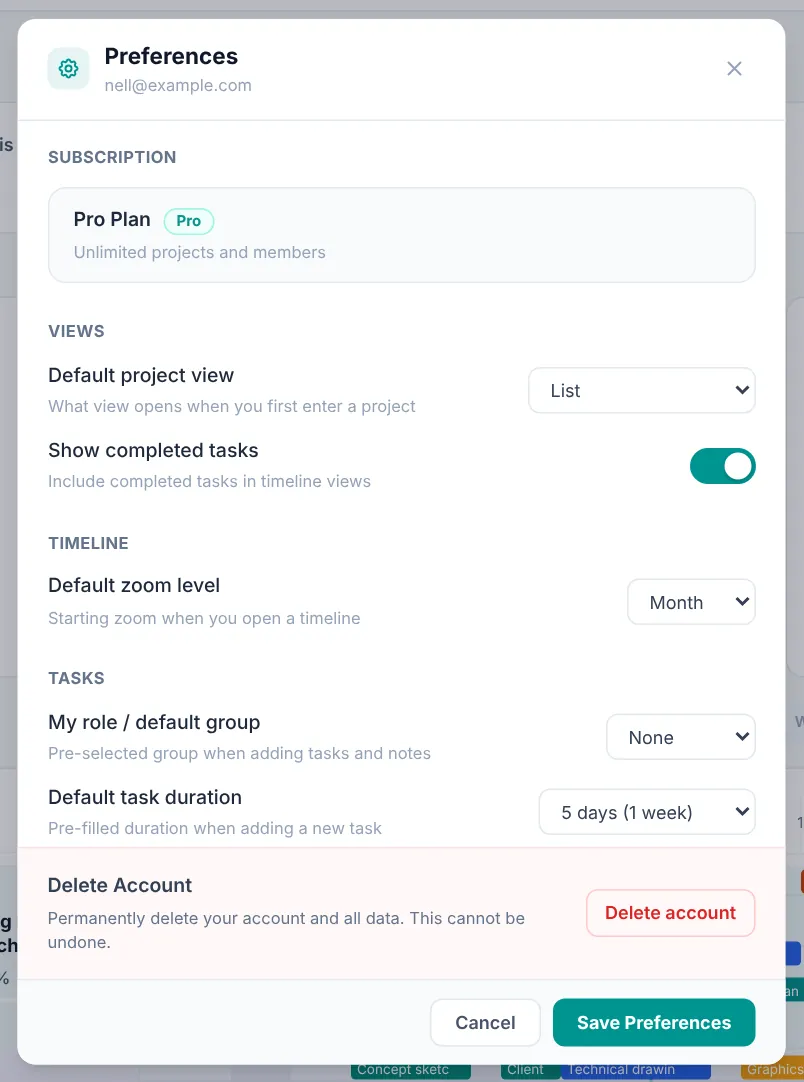
Default project view
The view a project opens in: List, Timeline (Plan or Swimlane), Kanban or Notes.
Timeline settings
Your starting zoom level, and whether completed tasks show on timelines.
Defaults for new work
Your group (pre-selected when you add tasks and notes) and the starting length of a new task.
Email notifications
A weekly summary every Monday morning, and an email when you're assigned a task.